
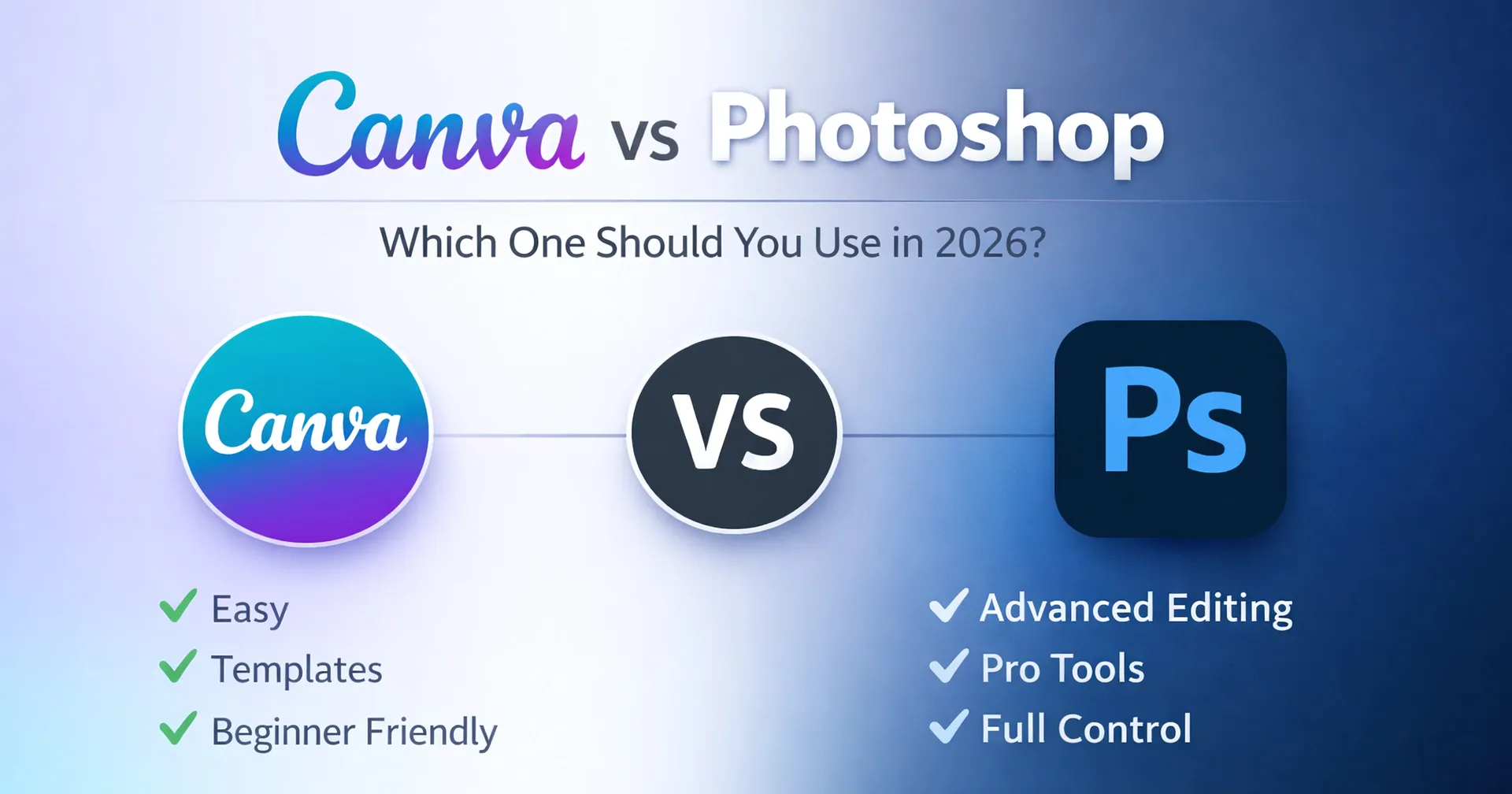
The design world has a loud, annoying habit of making everything sound like a life-or-death choice. If you spend five minutes on a creative forum, you will hear that “real designers” only touch high-end software. Then you look at the actual business world, where billion-dollar brands are churning out social posts using basic web tools. It creates a lot of noise.
If you are stuck in the Canva vs Photoshop loop, you are likely asking the wrong question. It isn’t about which app has the most buttons. It is about how much your time is worth and what kind of “finish” your project actually needs. In 2026, the gap between the hobbyist and the pro has blurred because of automation, but the core philosophies of these two tools remain on opposite sides of the planet.
This comparison is not a feature list you can find on a sales page. It is a look at the friction, the costs, and the daily reality of Canva vs Adobe Photoshop in a professional workflow.

Get a Quote

FAQ

Contact Us
What Should You Know About Canva?
Canva, at its heart, is a huge collection of pre-made ingredients. It was designed to be used by the person who has a vision but has zero interest in learning to draw a vector from scratch. It lives in the browser, which means you don’t need a three-thousand-dollar computer to use it.
It has evolved beyond the simple “flyer maker” by 2026. It has evolved into a productivity suite. It has tools for video, websites, and even data visualizations created in bulk. The pitch is “instant results.” There is no starting with a blank white screen, only to have it stare back at you in a sea of nothingness. There’s a template that’s already 80% done, and you just change the text, change the colors to match your brand, and click export. It’s designed by the impatient.
What Is Adobe Photoshop?
Photoshop is a surgical kit. While Canva is about “putting things together,” Photoshop is about “tearing pixels apart.” It is a raster editor that gives you power over every single dot of color on your screen. If you need to fix the lighting on a product shot so it looks like it was taken in a studio, or if you need to digitally paint a character for a movie poster, this is the only place to be.
It is the industry standard for a reason. In 2026, it still demands a powerful computer and a fair bit of patience. Adobe has added a lot of automated “Neural Filters” to help with the grunt work, but the soul of the program is still manual. It is a tool for people who refuse to use a template because they want a result that nobody else on earth has.
Canva vs Adobe Photoshop: What Is the Difference?
When you need to finish a design, the choice usually comes down to how much time you have and what the final product needs to look like.
How long does it take to learn?
Canva is fast because it doesn’t overwhelm you. You can knock out a social post in a few minutes, even if you’ve never touched it before. The screen isn’t cluttered with buttons, so you won’t feel like you’re drowning in menus. You just drag your photos on, swap the text, and you’re done.
Photoshop is a whole different story. It’s a steep climb. Even with the new updates, there have been some reported issues related to the ease of use. You have to wrap your head around layers and specific selection tools just to make a simple edit. It’s taking me weeks to get the hang of it, but it lets you do heavy-duty work that basic apps just can’t touch.
Using Templates vs Manual Control
Canva offers everything in one place. You have access to all the images, videos, and icons that you need without having to look anywhere else on the internet. It is meant to create a layout with the parts that are available.
Photoshop is useful for making tiny adjustments to your picture. You can zoom in and change a single dot of color. You can clean up a picture to make it look like a natural picture. It is also useful for making adjustments to very large files, like a sign or billboard. Web-based applications like Canva will freeze or crash when you attempt to work with files that large.
Can You Photoshop on Canva?
It’s a question that pops up quite frequently. The short answer is no. It’s worth noting that Canva and Photoshop are different applications developed by different companies.
That said, Canva has a few editing options that somewhat resemble the Photoshop experience. For example, you can easily eliminate unwanted elements, enlarge the background, and so on. It’s great for social media posts and quick designs done on your phone.
But when you need to make precise adjustments to your image, such as changing the shadows and working on complex cut-outs to prepare your artwork for professional printing, Canva has its limitations. It’s meant to be quick and easy.
Photoshop, on the other hand, is meant for precise and detailed image editing. Every small detail matters.
The Cost: Adobe Photoshop vs Canva
The price is often the most important factor.
Canva can actually be very affordable to use. You pay one monthly charge, and any member of the office can use the shared digital “locker” that you create. Inside the locker, you store your official logo and specific shades of the company color. This means that any member of the office can grab the correct logo or use the same shade of blue without having to ask. It’s a great tool for keeping the work all consistent and within a small budget.
Photoshop, on the other hand, is included in a monthly plan through Adobe. You can actually get a cheaper version if you only want to use the photo features, but it’s still a monthly charge that you have to pay. While Canva feels like a simple tool that anyone can use, Photoshop feels like equipment that’s designed for professionals, for people who do high-level design work for a living.
Comparison of the Two Tools
Which one? | Canva | Photoshop |
How fast is it? | Done in a few clicks. | Time Consuming but spectacular results |
Beginning the work | Ready-made layout | Start with a blank screen |
Setup Required | Runs on any browser | Large Software for a fast computer |
What AI does | Puts the page together. | Fixes dots and cleans photos. |
Printing things | Good for a basic flyer. | Built for giant wall signs. |
The Wi-Fi part | Stop working if the web goes down. | Works without a connection. |
Which one fits your work?
There is no single answer to this, as the choice of the tool solely depends on the type of project. At Tree Multisoft Services, we tell our clients to stop looking for a “winner” and start looking for a “fit.”
You should stick with Canva if:
- You are a one-person marketing team or a small business owner.
- You need to produce ten different social media posts every single day.
- You want your team to be able to make quick text changes without calling a designer.
- You don’t want to spend three months watching YouTube tutorials just to make a flyer.
You should invest in Photoshop if:
- You are a professional photographer or a dedicated digital artist.
- You are building a brand identity from scratch and need zero limitations.
- You want to work in a high-end design firm where PSD files are the only language people speak.
- You need to do complex “compositing,” like merging five different photos into one realistic scene.
The “Hybrid” Secret for Professionals
A pro creator will not stick to just one side. He/she will use what is called a hybrid workflow.
At TreeMultisoft, we often create complex, high-resolution content in Photoshop: things like a custom logo, a 3D product render, or a perfectly retouched hero image. We then export this content as a high-quality PNG or SVG and import it into Canva.
This way, we are not missing out on anything; the client will have both a design that was crafted skillfully in Photoshop, but also the speed of Canva to place this content into a story, ad, or presentation. It’s all about using the right tool for the right stage of the job.
The 2026 AI Reality: No More Grunt Work
AI has changed how both apps work. In Canva, it acts like a helper when you do not know where to start. You just type a few words, and it builds a layout. It picks the fonts, the colors, and the spacing so you do not have to mess with them.
In Photoshop, AI takes over the slow, manual chores. It can grab the sky, wipe out a power line, or stretch the edges of a photo to make it wider. It does not do the job for you. It just finishes the repetitive tasks so you can spend more time on the actual creative work.
How AI works in Canva
- No more blank screens: you can write a short note, and the tool builds a set of social media posts or a slide deck. It gives you a head start, so you are not staring at a white page.
- With brand customization, AIwill remember your brand’s logo as well as your design’s color palette and font.
- With text editing, AI will change your designs’ text by shortening it, editing headlines, or changing the whole design into a different language.
- Quick photo fixes: You can rub out an object or add something new to a picture just by describing it. This is great for fast social media updates.
How AI works in Photoshop
- Picking out messy edges: Choosing hair or thin trees used to take an hour. Now, the software finds those edges perfectly in a second.
- Filling in gaps: You can circle an empty spot and tell the app to “add a mountain” or “remove the car.” It blends the new pixels with the old ones so they look real.
- Making photos wider: If your photo is too narrow, the tool looks at the background and draws more of it to fill the space.
- Using sliders for portraits: You can change an expression, fix where someone is looking, or smooth out skin by just moving a slider instead of painting by hand.
Conclusion
The Canva vs. Photoshop argument is usually a distraction. Canva is for people who need to be fast and do not want to learn the technical side. Photoshop is for people who want to own the process and learn the hard stuff.
If you are new, just use Canva. It is a major time-saver, and it looks solid on a phone screen. Do not feel bad about taking the shortcut. But if you get to a point where the templates feel like they are holding you back, that is when you should start the Canva vs. Adobe Photoshop journey. In the end, the person looking at your work does not care what software you used. They only care if the image looks good and makes them feel something.
Get a Quote
FAQ
Contact Us
FAQs
Q1. Which is better for social media marketing?
A1: Canva is the runaway winner here. The ability to "magic switch" a design from a square Instagram post to a tall vertical Reel in one click is something Photoshop simply cannot do with the same speed. For high-volume social media work, Canva is the industry standard.
Q2. Is Photoshop worth the price for a beginner?
A2: Only if you are planning on making design your primary career. For a hobbyist or a small business owner, the learning curve and the cost are usually too much of a barrier. Canva’s free version is surprisingly deep and more than enough for basic needs.
Q3. Can I use my own fonts in both?
A3: Yes. Both tools allow you to use your own branding. In Canva, you need a "Pro" account to upload your own font files. In Photoshop, any font installed on your computer is automatically available for your designs.
Q4. Does Canva replace the need for a professional designer?
A4: No. Canva makes it easier to build "things," but it doesn't give you the "eye" for design. A professional understands balance, hierarchy, and color psychology. A bad design made in Canva is still a bad design. The tool is only as good as the person using it.
Q5. Which tool is better for logo design?
A5: Technically, logos should be made in a vector program like Adobe Illustrator so they can be scaled to any size. However, if you are choosing between these two, Photoshop is better for artistic, complex logos, while Canva is better for simple, icon-based marks.
Q6. Can I edit Photoshop files in Canva?
A5: You can import a PSD file into Canva, and it will try to break the layers into editable Canva elements. It works well for simple files, but if you have complex "Smart Objects" or specialized filters in your Photoshop file, they will not transfer perfectly.